How to Convert PDF to HEIC Online Free – Step-by-Step Guide:
Have you ever tried to share a pdf and found it too big to open properly on your phone? And what if you could turn that same pdf into high-quality HEIC images at your fingertips with ease – without any software and complicated setup?
Yes, large PDF files can be a hassle. They take too much space, load slowly, and are hard to share, especially when you only need images from them. If you want a smaller, high-quality image format, converting a PDF to HEIC would be a great choice.
In this guide, you’ll learn how to convert PDF to HEIC online for free, step by step, without any complications.
Why Convert PDF to HEIC?
PDFs are great for documents, but not ideal when you need images. HEIC solves this problem.
Here’s why users prefer HEIC:
- Smaller file size with excellent image quality
- Faster loading and sharing
- Perfect for iPhone, iPad, and Mac
- Saves storage without losing clarity
If your PDF contains images, screenshots, or scanned pages, converting it to HEIC makes viewing and managing much easier.
What Is HEIC and Why Is It So Popular?
HEIC stands for High-Efficiency Image Container. Apple introduced this format to replace older image types like JPEG.
HEIC files keep image quality high while reducing file size. That means faster sharing, less storage use, and better performance on modern devices.
Compared to JPEG or PNG, HEIC:
- Compresses images better
- Keeps sharp details
- Uses less storage space
That’s why HEIC is generally used on iPhones, iPads, and Macs. When you convert PDF pages into HEIC images, you get clean visuals without heavy files.
How to Convert PDF to HEIC Online (Step-by-Step)
To get the best results, always use a secure and reliable online tool. Make sure the website uses HTTPS, doesn’t add watermarks, and deletes files automatically after conversion.
You can use PDFimagetool’s PDF to HEIC Converter for a fast and safe experience.
Step 1: Open the PDF to HEIC Converter
Go to PDFimagetool.com and select the PDF to HEIC Converter from the homepage.
The interface is simple, so even first-time users won’t feel confused.
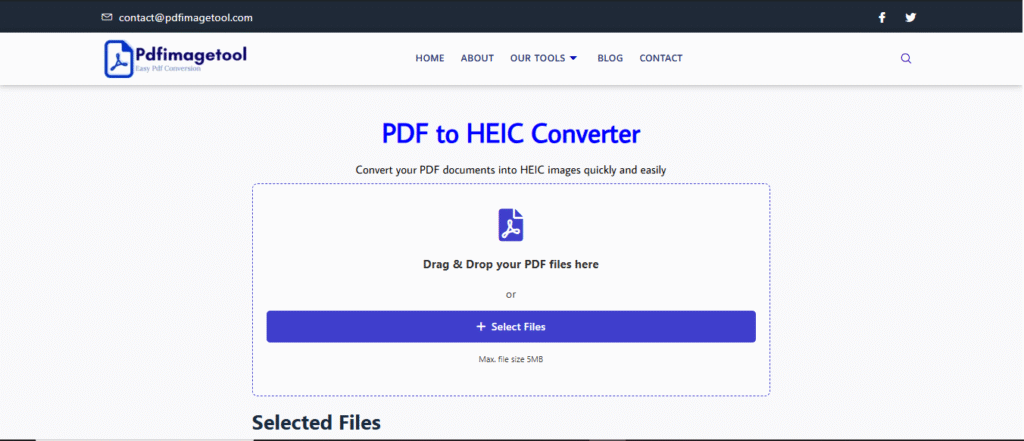
Additionally, if the required tool is not visible on the homepage, it is easy to locate it by using the search icon. If you don’t see the tool immediately, you can use the menu or search bar to quickly find the desired tool.
Step 2: Upload Your PDF File
Upload your PDF by dragging and dropping it into the upload box, or click Choose File to select it manually.
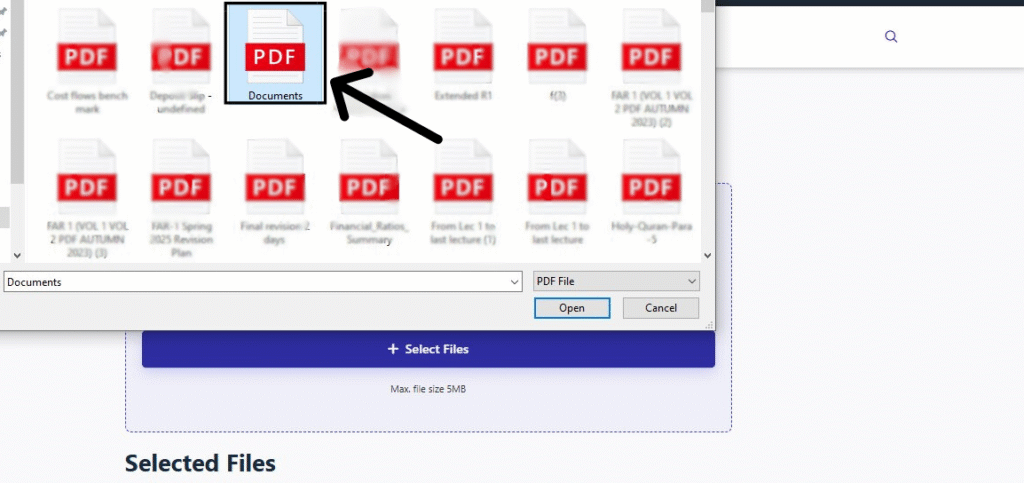
Once uploaded, the tool automatically detects:
- File size
- Number of pages
- File format
You can upload multiple PDFs, but make sure each file is under 5MB. If your file is larger, compress or split it before converting.
Step 3: Convert PDF to HEIC
Click the Convert to HEIC button.
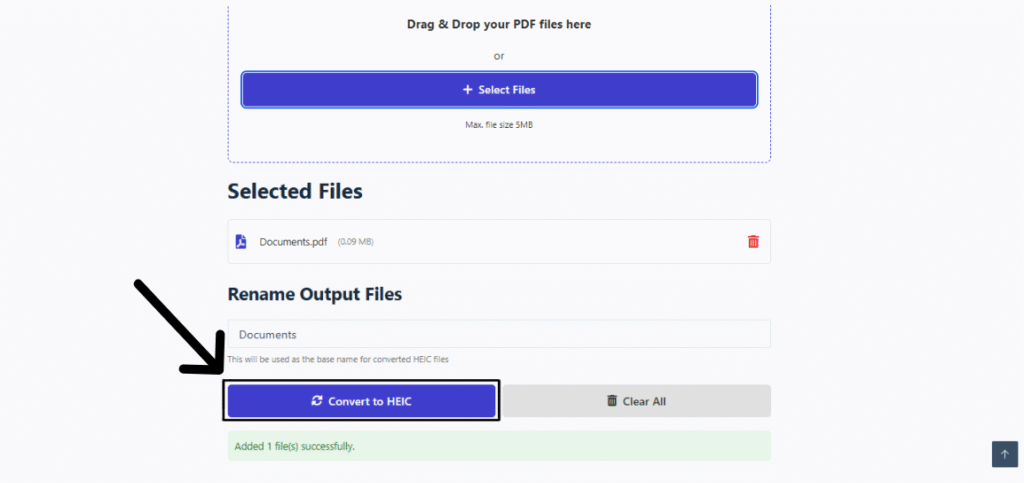
The tool starts processing instantly and converts each PDF page into a HEIC image within seconds.
No lengthy, complicated process or sign-up required. Just smooth conversion with high – quality output.
Step 4: Download Your HEIC Images
After conversion, download your HEIC files instantly.
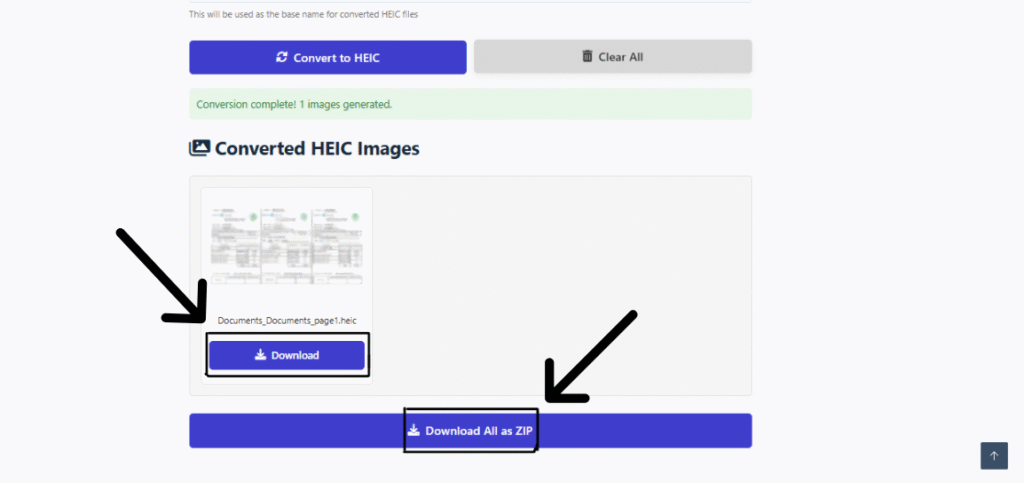
- Download images individually.
- Download all images as a ZIP file.
- Rename files for easy identification.
No watermark, no hidden steps. Just upload, convert, and download.
Common Problems and Easy Solutions
HEIC File Not Opening on Windows
Windows doesn’t support HEIC by default.
Install HEIF Image Extensions from the Microsoft Store, and your files will open normally.
For wider compatibility, you can also convert HEIC to JPEG.
Conversion Failed or Stuck
This usually happens due to:
- Large PDF size
- Slow or unstable internet
Solution:
- Compress the PDF
- Or use the Split tool for multi-page PDFs into smaller files.
- Refresh the page and try again.
Low-Quality Output
If the HEIC image looks blurry, the original PDF quality is likely low.
Remember:
- The converter preserves original quality; it doesn’t improve it.
- Upload a high-resolution PDF for better results.
Watermark on Images
Many free tools add watermarks. Avoid them by using a no-watermark converter like PDFimagetool to keep images clean and professional.
Password-Protected PDFs
Locked PDFs can’t be converted.
Solution:
- Remove the password first
- Save an unlocked version.
- Then upload the file again.
FAQs – PDF to HEIC Conversion
Is HEIC Converter free?
Most online HEIC converters are free to use, with basic limits on file size or features.
Is it safe to convert PDF to HEIC online?
Yes, if you use a secure HTTPS website that automatically deletes uploaded files after conversion.
Can I convert multi-page PDFs to HEIC?
Yes. Each page is converted into a separate HEIC image.
How to convert PDF to HEIC on Mac?
You can convert PDF to HEIC on Mac using any online converter directly in your browser.
Can I open HEIC files on Android?
Most modern Android devices support HEIC. If not, you can convert HEIC to JPEG easily.
Is HEIC better quality than JPEG?
Yes, HEIC provides better image quality than JPEG while using less storage space.
Final Thoughts
Converting PDF to HEIC online isn’t just about changing file formats – it’s about saving storage, improving performance, and making files easier to manage. HEIC offers excellent image quality in a lightweight format, making it perfect for modern users.
If you want a fast, clean, and secure solution, use a reliable PDF to HEIC converter. And if privacy matters to you, always check the tool’s privacy policy before uploading files.